Posting Roles
Before you can start accepting applications, you need to configure your recruitment settings to let applicants know what you are looking for.
Configuration
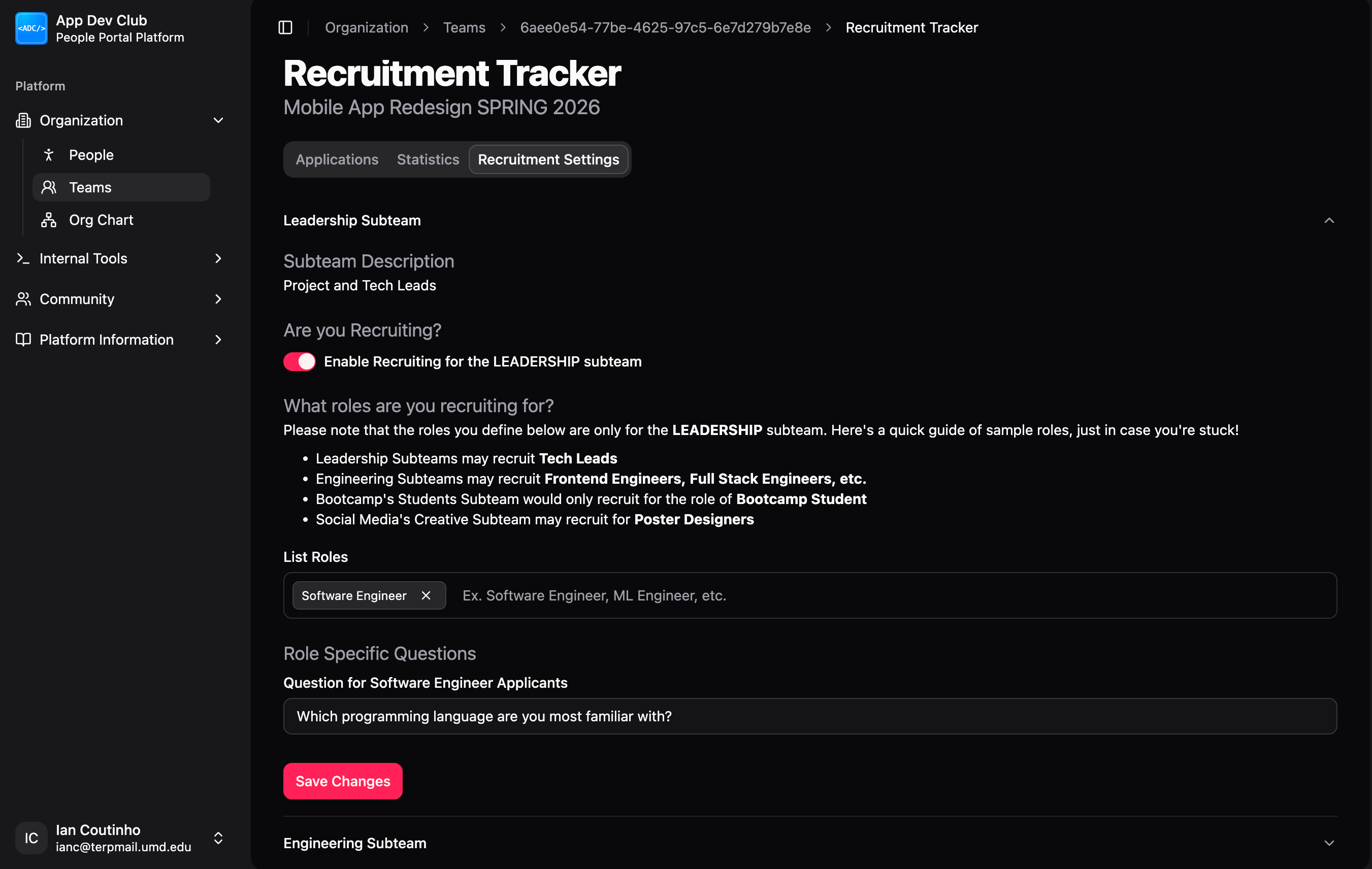
Navigate to the "Recruitment Settings" tab in your Team Dashboard to access these controls.
Enable Recruitment
Toggle the "Enable Recruiting" switch for the specific subteam you want to hire for.
- What this does: This makes your team visible on the public Open Roles page.
- Note: You can toggle this off at any time to pause applications without losing your configuration.
Define Roles
List the specific positions you are hiring for in that subteam (e.g., "Frontend Engineer", "Marketing Lead").
- Enter a role name and press Enter to add it.
- Visibility: These roles will appear as badges on your team card and as options for applicants to select in their application.
Role-Specific Questions
Once you've added roles, you can define specific questions for each one.
- Usage: This is useful for gathering targeted information (e.g., "Link to your portfolio" for designers).
- Applicant View: Applicants will only see questions relevant to the roles they select.